

VS Code
The vDesign extension shows a .vd file as its design, beside the text and
redrawn as you type. It works in VS Code, Cursor, Windsurf and VSCodium, and
in vscode.dev and github.dev with nothing to install.
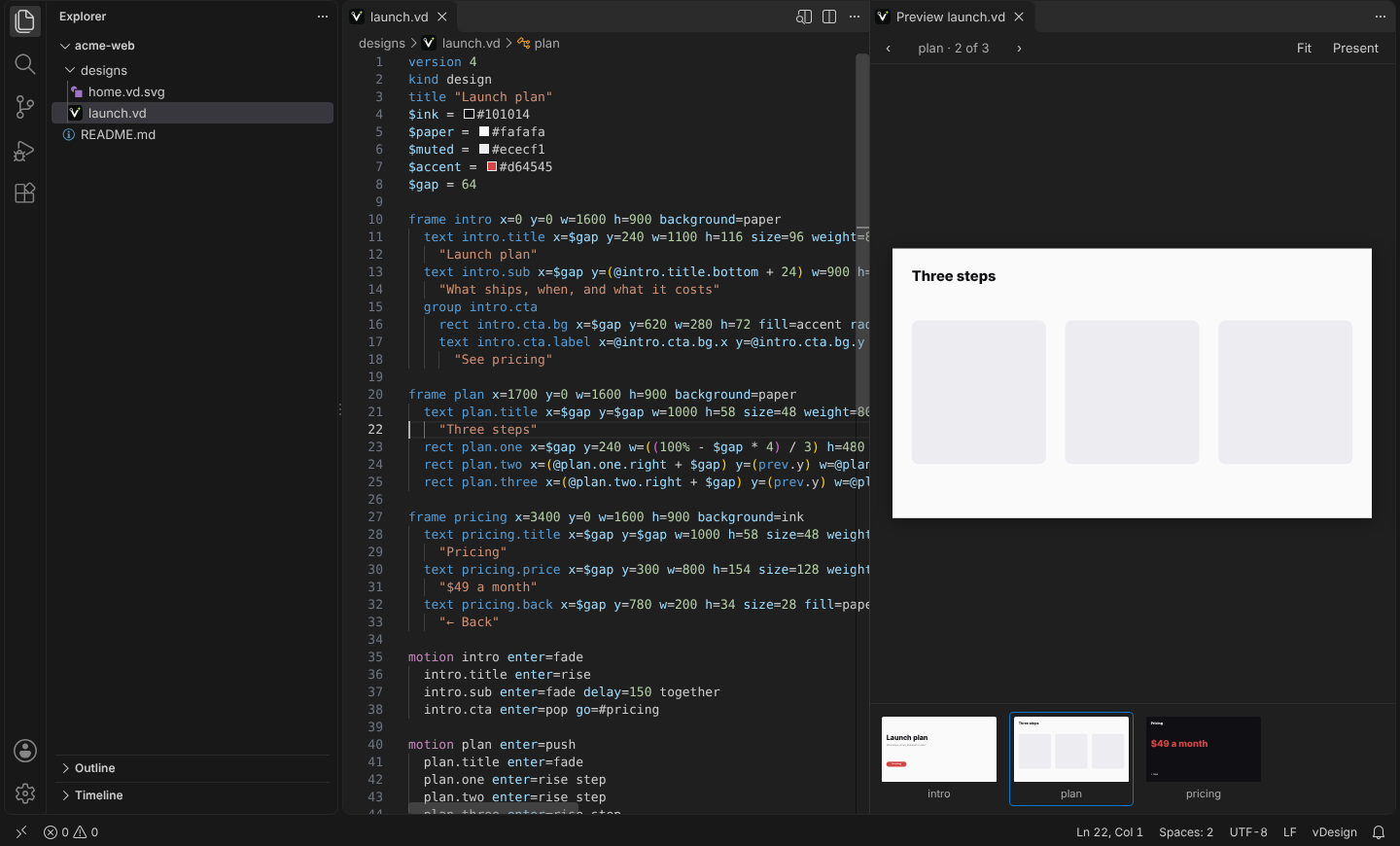
Designs are made in the vDesign app. The extension views them. You can change the text by hand, or ask your editor’s assistant to, and the preview follows.
Preview
- ⌘K V (Ctrl+K V) opens the preview beside the text; ⌘⇧V opens it in place. The button at the top right of the editor does the same.
- Every page is in the strip along the bottom. Choose one and the preview goes
there, and its
frameline is revealed in the text. Move the cursor into another page and the preview follows it. - Present plays the design one page at a time. Escape stops.
.vd.svg files
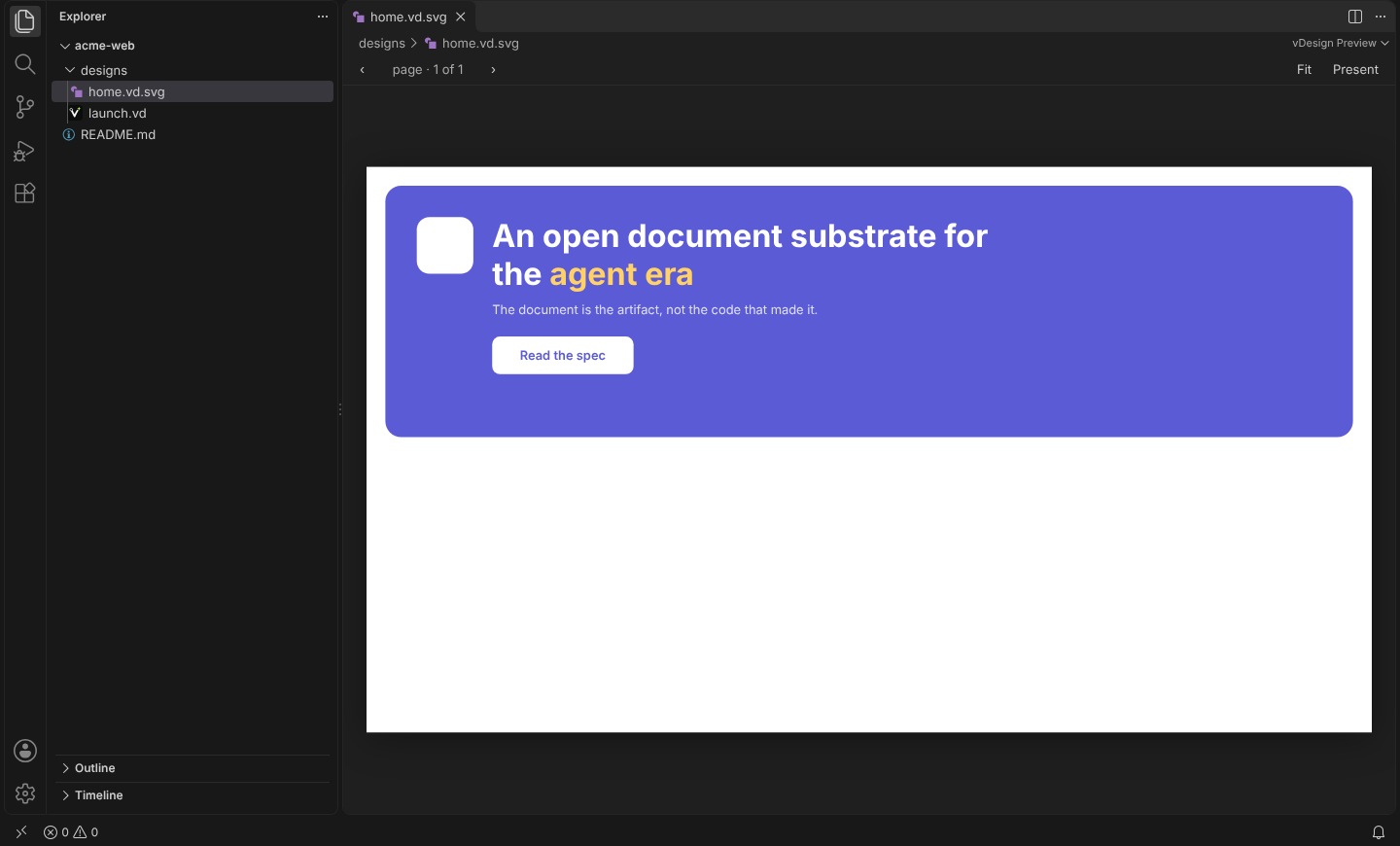
A .vd.svg opens straight into the preview. VS Code has its own
SVG preview too, so the first time it asks which to use.
While you type
- Problems are underlined as you type, with the messages the app gives.
- The pages are in the Outline view, the breadcrumbs and Go to Symbol (⌘⇧O).
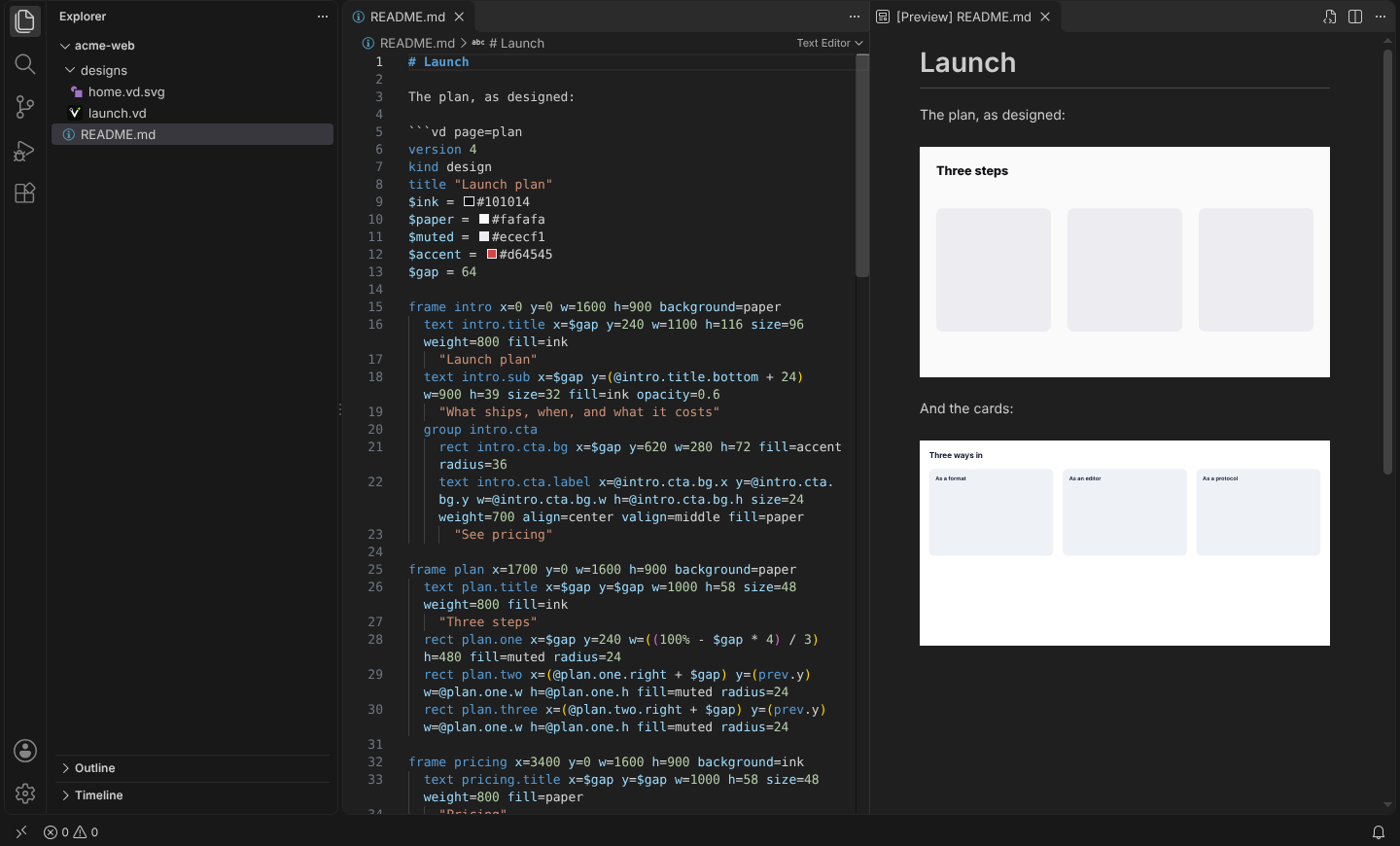
.vdfiles are coloured, and so are```vdfences in Markdown.
In the Markdown preview
```vd fences are drawn in VS Code’s own Markdown preview, with the options
in Designs in Markdown. src= reads a file beside the
Markdown on desktop.
Commands
| Command | What it does |
|---|---|
| vDesign: Open Preview | The preview, in place. |
| vDesign: Open Preview to the Side | The preview, beside the text. |
| vDesign: Present | Play the design. |
| vDesign: Export Page as SVG… | One page, to a file you choose. |
| vDesign: Copy as Markdown Fence | The design as a ```vd fence, without its pictures. |
Editing with an assistant
The extension runs no agent and adds no tools. An assistant edits a .vd well
once it has the format’s reference: give it
llms-full.txt, or the skill from
Teaching an agent.
Privacy
No telemetry, and no network requests. The renderer and its fonts are files inside the extension.